


You open your laptop, ready to work, but you need to check your schedule, set a timer, and control your smart lights all at once. Typing out every single query takes valuable time away from your actual tasks. Voice commands solve this problem instantly, giving you a hands-free way to navigate your daily workflow.
Setting up Google Assistant on Chromebook transforms your device from a standard web-browsing machine into a highly capable smart hub. You can manage your calendar, control smart home devices, open applications, and dictate text without lifting a finger. Chrome OS integrates these voice features deeply into the system to make multitasking effortless.
Getting started is simple, but unlocking the full potential of your device takes a little more knowledge. This guide covers everything you need to know to optimize your voice assistant on Chrome OS. You will learn the best commands, how to tweak your settings, and ways to boost your overall accessibility.
Chromebook Voice Assistant Setup Guide
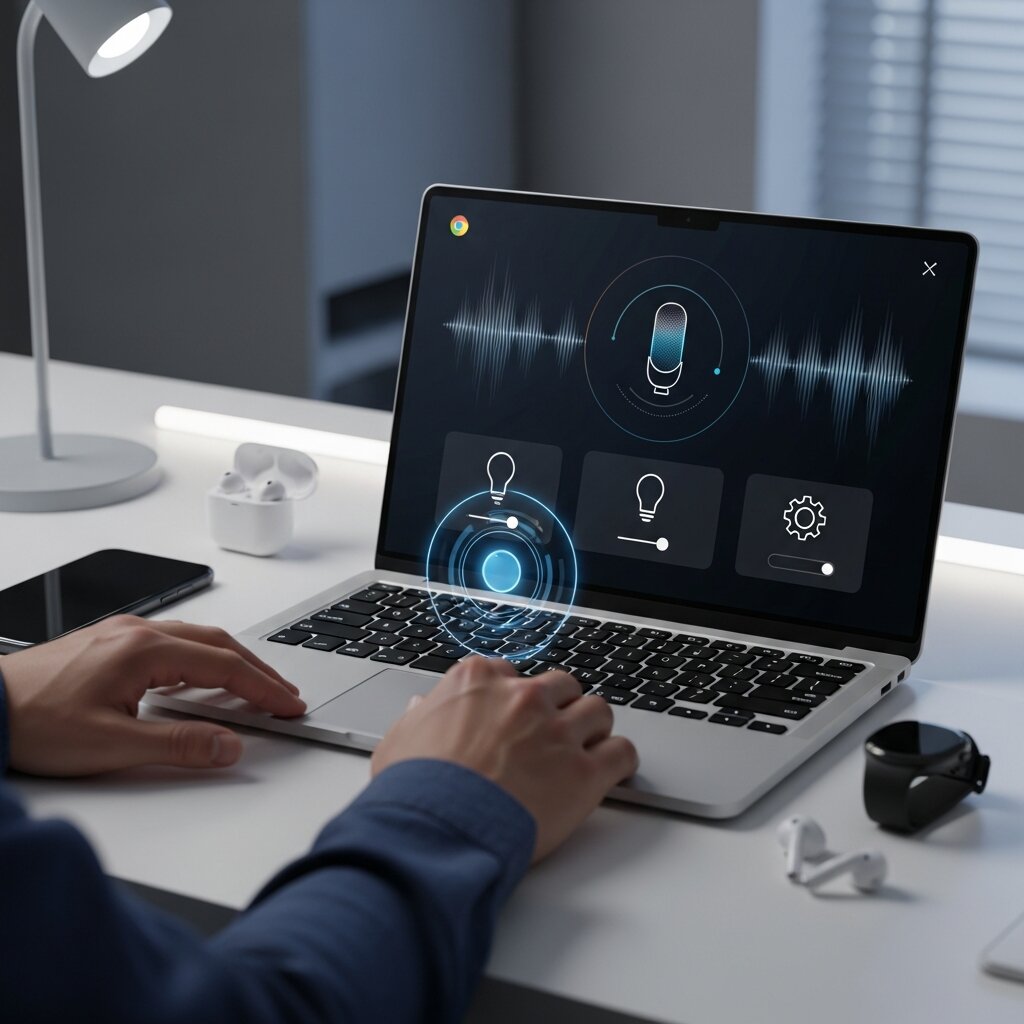
Before you can start using voice commands and smart features, you need to properly enable Google Assistant on Chromebook through your Chrome OS settings. Fortunately, the setup process is simple and only takes a few minutes, although the exact menu layout may vary slightly depending on your Chromebook model, Chrome OS version, or school/work management restrictions.
To activate Google Assistant on Chromebook, open your device settings and navigate to the Google Assistant section under “Search and Assistant.” From there, you can turn on voice assistance, customize permissions, and choose whether you want to activate it using voice commands or keyboard shortcuts. Some devices also allow you to enable personalized voice recognition for a more seamless hands-free experience.
During setup, you can configure privacy preferences, notification settings, and accessibility options to match your workflow. Properly setting up Google Assistant on Chromebook ensures smoother voice recognition, faster command responses, and better integration with apps, calendars, reminders, and smart services connected to your Google account.
How to Turn on Google Assistant Chromebook
Activating the assistant only takes a few clicks. First, click on the clock in the bottom right corner of your screen to open the Quick Settings panel. Click the gear icon to enter the main Settings menu. On the left sidebar, locate and select “Search and Assistant.”
Under this section, you will see a toggle for Google Assistant. Switch this toggle to the “On” position. If this is your first time enabling the feature, a setup window will appear. Follow the on-screen prompts to connect your Google account and agree to the necessary permissions.
How to Enable Google Assistant on Chromebook with Voice Match
To truly use Google Assistant on Chrome OS hands-free, you need to enable the “Hey Google” wake word. Within the “Search and Assistant” menu, look for the “Hey Google” option in a drop-down menu.
Select “Always on” if you want the device to listen for the wake word even when the screen is off or the device is locked. If you prefer to save battery, you can select “On (when screen is on).” The system will then ask you to train your voice model by repeating a few phrases. This ensures your Chromebook only responds to your specific voice.
Google Assistant Settings on Chromebook
Customizing your preferences ensures the assistant works exactly how you want it to. In the same settings menu, you can adjust various features. You can choose whether you want audio output for responses or if you prefer text-only replies. You can also manage your connected smart home devices, adjust language preferences, and review your past voice activity. Taking a few minutes to configure these settings greatly improves your overall user experience.
Use Google Assistant on Chrome OS

Once you finish the initial setup, you can immediately begin using voice control on Chromebook devices. There are two primary ways to summon the assistant: saying your chosen wake word or pressing the dedicated Assistant key on your keyboard (often located between the Ctrl and Alt keys on newer models, or activated via the Search/Launcher key).
Chromebook Google Assistant Commands
Knowing the right phrases makes navigating Chrome OS incredibly efficient. Here are some of the most useful commands to try out:
- System Controls: “Turn up the brightness,” “Mute the volume,” or “Turn off Bluetooth.”
- App Navigation: “Open Google Docs,” “Launch YouTube,” or “Go to settings.”
- Information Gathering: “What is the weather like today?”, “Translate ‘hello’ to Spanish,” or “How many ounces are in a cup?”
- Organization: “Set a timer for 15 minutes,” “Remind me to call John at 3 PM,” or “Add milk to my shopping list.”
- Communication: “Send an email to Sarah,” or “Start a video call.”
Voice Control on Chromebook Devices
Beyond simple questions, voice control allows you to manipulate the system without a mouse or trackpad. If your hands are full or you simply prefer speaking, you can ask the assistant to take a screenshot, lock your screen, or even power down the device. This level of system integration sets Chrome OS apart from simple browser-based extensions.
Maximize Chromebook Productivity with Google Assistant

Productivity thrives on minimizing friction. When you eliminate the need to switch tabs to check a fact or open a separate app to set a reminder, you maintain your focus.
Google Assistant Features for Chromebook
One standout feature is the ability to type with your voice. Whenever you click into a text field—whether it is a Google Doc, an email, or a search bar—you can use the assistant to dictate your thoughts. The natural language processing is highly accurate and understands basic punctuation commands like “period” or “new paragraph.”
Additionally, the assistant provides proactive suggestions based on your screen context. If you are reading an article about a specific location, pulling up the assistant might automatically suggest maps or weather information for that area.
Best Chromebook Accessibility Features
Google Assistant plays a major role in the Chrome OS accessibility ecosystem. For users with limited mobility or visual impairments, voice commands offer a reliable way to interact with the web.
When paired with the built-in ChromeVox screen reader, users can hear the assistant’s responses and navigate complex web pages audibly. You can also use voice commands to activate other accessibility tools. Simply say “Turn on high contrast mode” or “Enable the screen magnifier” to instantly adjust your display without digging through menus.
Frequently Asked Questions
Does every Chromebook support Google Assistant?
Most modern Chromebooks support the assistant. However, some older models or devices managed by a school or enterprise might have the feature disabled by an administrator.
Why is my Google Assistant greyed out on Chromebook?
If the option is greyed out, it usually means your device is managed by an organization (like a school or employer) that has restricted access to voice assistants. You will need to contact your IT administrator to request access.
Can I use Google Assistant without Wi-Fi?
No. The assistant requires an active internet connection to process your voice commands and fetch information from Google’s servers.
How do I activate Google Assistant with the keyboard?
You can activate it by pressing the dedicated Assistant key (on supported models) or by pressing the Search/Launcher key and typing your query directly into the search bar.
Can I change the Google Assistant voice on my Chromebook?
Yes. Open the Google Assistant settings on your mobile device connected to the same account, or navigate to the assistant settings on your Chromebook, and select “Assistant voice and sounds” to choose a different voice profile.
Does Google Assistant drain Chromebook battery?
Leaving the “Hey Google” detection set to “Always on” can cause a slight increase in battery consumption because the microphone remains active in the background. If battery life is a priority, change the setting to only work when the screen is on.
How do I turn off “Hey Google” detection?
Go to Settings > Search and Assistant > Google Assistant, and change the “Hey Google” drop-down menu to “Off.” You can still trigger the assistant manually via the keyboard.
Can Google Assistant read my screen on a Chromebook?
Yes. If you grant the necessary permissions in the settings, you can ask the assistant “What’s on my screen?” to get context-aware information based on your current active window.
Is my voice data private when using Google Assistant?
Google processes your voice queries to provide answers. You can manage, review, and delete your voice recording history at any time by visiting your Google Account Activity controls online.
Can I control smart home devices from my Chromebook?
Yes. As long as your smart home devices (lights, thermostats, plugs) are linked to the same Google account, you can control them using voice commands on your laptop.
How do I retrain my voice model on Chrome OS?
Navigate to Settings > Search and Assistant > Google Assistant. Under the “Hey Google” section, click on “Retrain voice model” to go through the setup process again.
Will Google Assistant work if my Chromebook is locked?
If you select the “Always on” setting for “Hey Google,” you can ask basic queries (like the weather or timers) while the device is locked. Personal results might require you to unlock the device first.
Can I type to Google Assistant instead of speaking?
Absolutely. Press the Search/Launcher key and type your question directly into the search bar. The assistant will process text inputs just like voice commands.
Does Google Assistant integrate with third-party apps on Chrome OS?
Integration depends on the app developer. Many popular Android apps downloaded from the Google Play Store support basic voice commands, but deep integration is usually reserved for Google’s own workspace apps.
How do I disable Google Assistant completely?
Go to Settings > Search and Assistant > Google Assistant, and flip the main toggle switch to the “Off” position. This turns off all assistant functionality on the device.
Take Control of Your Chrome OS Experience
Using Google Assistant on Chromebook can completely transform the way you interact with your device by making everyday tasks faster, easier, and more efficient. Instead of constantly switching between tabs, typing long searches, or manually opening applications, you can use simple voice commands to manage your workflow more smoothly. From setting reminders and checking schedules to launching apps, controlling media playback, and searching the web, Google Assistant on Chromebook helps streamline your daily activities while improving productivity.
One of the biggest advantages of using Google Assistant on Chromebook is the hands-free convenience it provides. Whether you are studying, working, or multitasking, voice commands allow you to stay focused without interrupting your workflow. You can also customize settings, explore accessibility features, and personalize how the assistant responds to better fit your routine and preferences.
Taking a few minutes to explore and configure Google Assistant on Chromebook can greatly improve your overall Chrome OS experience. Once you become familiar with the most useful commands and integrations, your Chromebook becomes more than just a laptop—it turns into a smarter and more personalized productivity tool designed to simplify your everyday tasks.